Running Linux on Windows feels like magic at first. But you may discover some things are not as convenient as they first appear. One such inconvenience is the slow performance of sharing files between the Linux subsystem and your main Windows file system. Within the Linux subsystem you'll see your drives automatically under /mnt/, for example /mnt/c/ is your C:\ drive. It's tempting to run development projects from Linux using /mnt/ but unfortunately it's rather slow, especially for things like Python virtual environments. The best workaround I've found for this is to keep the files within the Linux container (eg. /home/) and automatically sync them to other drives under /mnt/.
What's the problem?
- My files are on Windows drives, but I want to develop inside WSL
- Running projects over /mnt/ is slow in WSL
- Accessing the files inside the WSL container from Windows isn't clear
What's the solution?
- Keep all dev files within the WSL containers
- Access and sync the files from Windows using \wsl$
Once you have at least one WSL container, enter \wsl$ into the address bar in File Explorer on your Windows machine to access the file systems for all your containers.
\\wsl$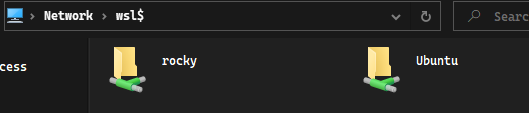
There are many ways to go from here. The easiest may be to schedule and run sync software from Windows, pulling down the files from \wsl$ and copying them to your usual Windows location. Eg. C:\my_projects\
sync \wsl$\ubuntu\home\dev to C:\Users\You\YourProjects\dev
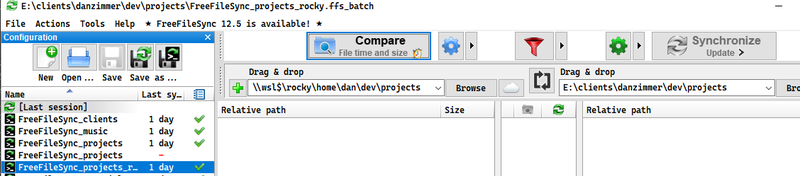
One such Windows sync software is https://freefilesync.org. In this case use the Windows Scheduler to execute the Free File Sync configuration you setup for your specific use case. This could include a two way sync or other various options.
taskschd.msc
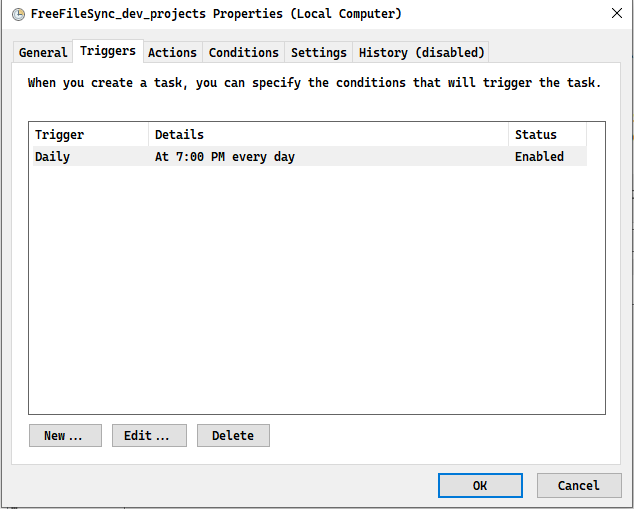
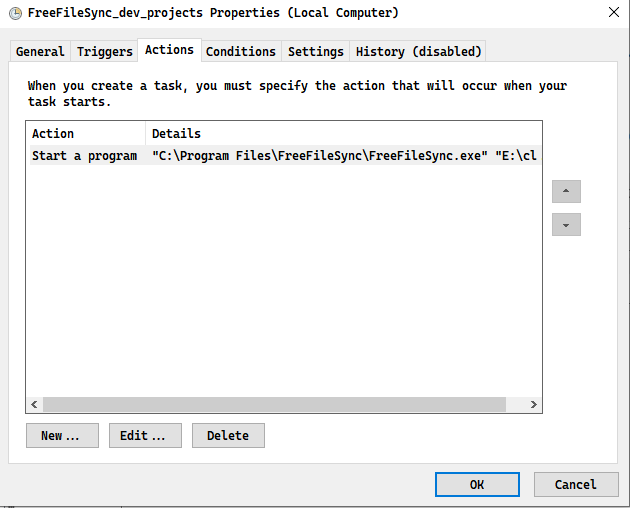
For more info see: https://freefilesync.org/manual.php?topic=schedule-batch-jobs
If this is too 'Windows' looking for you I understand. Look at Syncthing as an alterative to FreeFileSync.